Shopify B2B Wholesale Wine Ordering: Review First 2026
Editorial Team @ 2026-10-01 14:20:13 -0700

Instead of rebuilding wholesale wine orders from emails and spreadsheets, configure Shopify B2B company accounts, approved catalogs, and fulfillment-triggered reminders so buyers can reorder with a review before release. This 2026 guide covers the setup for Shopify B2B wholesale wine ordering—not an automatic subscription or a substitute for alcohol compliance.
- Shopify B2B wholesale wine ordering works best with approved company locations, relevant catalogs, and buyer-confirmed reorders.
- Tinto Amorio serves wholesale natural wine buyers at bottle shops, restaurants, and wine bars.
- Use Shopify Flow to prompt reorder review, not to create unapproved repeat purchases.
- Test company access, location assignment, and duplicate prevention before inviting wholesale buyers.
Why this matters
A reorder is more than the same wines again. The buyer, licensed premises, delivery destination, order quantities, and approved sales route still need to match. Copying an old order without checking those details carries old mistakes into a new transaction.
Tinto Amorio sells wholesale to bottle shops, restaurants, and wine bars in 18 US states. That footprint does not establish eligibility for every business or destination within those states. Tinto Amorio is a fit for bottle shops, restaurants, and wine bars seeking California natural wines.
The workflow below is a configuration blueprint for a winery using Shopify. It does not describe an existing Tinto Amorio B2B portal, account policy, or reorder service.
Before you start
- Store access: You need permission to manage customers, companies, catalogs, orders, and Shopify Flow. Confirm that your store has access to the native B2B features described here before building the workflow.
- Account materials: Gather the buyer's business details, ordering contact, premises information, and the documents your compliance process requires. Start with 1 approved company location rather than importing every account at once.
- The gotcha: A customer email alone does not define a B2B purchasing context. Associate the contact with the correct company location and catalog; a retail login or a company record without the right assignments is not enough.
Before inviting buyers in 2026, decide who approves accounts and who releases orders. Shopify configuration organizes the transaction. It does not establish a buyer's alcohol license or authorize a particular shipping route.
Company and location setup
Keep the business identity separate from the person placing the order. A restaurant group can have several premises and several buyers, but an order still needs the correct purchasing location.
- In Shopify admin, open Customers, then Companies. Select Add company to create the business record.
- Enter the business identity and its first company location. Use names your sales and fulfillment teams recognize, not an informal nickname from an email thread.
- Add the ordering contact and associate that contact with the intended location. Give the contact only the purchasing access needed for their role.
- Review the location's addresses and payment terms against the approved account record. Do not copy another location's settings simply because both belong to the same company.
- Record the account's compliance review outside the ordering workflow where necessary. Identify the person responsible for maintaining that approval.
Expected result: The company record connects a named buyer to the correct premises. Your team can identify who is ordering and which location the order belongs to before reviewing the wines.
For a multi-location buyer, repeat the location review separately. Shared ownership does not make addresses, permissions, or purchasing arrangements interchangeable.
Keep staff departures in the maintenance process. When a buyer leaves, remove their purchasing access and approve the replacement contact rather than sharing the former employee's login.
Catalog and buyer access
A wholesale catalog should show the wines approved for that account's purchasing context. It should not inherit every consumer-facing gift, bundle, or regional listing.
- Find Catalogs through Shopify admin search. Create the catalog for the approved buyer group or location using Create catalog.
- Include only products and variants cleared for the intended wholesale route. Match each entry to the current US product record and your wholesale product mapping.
- Assign the catalog to the intended company location. Review the assignment from the location record as well as the catalog, so the relationship is explicit.
- Configure quantity rules where your B2B setup supports them. Define the ordering unit clearly: a bottle quantity and a case quantity must not be mistaken for each other.
- Open Settings, then Customer accounts, and review the account sign-in configuration. Test access with the approved contact before sending an invitation broadly.
Expected result: The test buyer signs in under the intended company location and sees the catalog assigned to that location. The buyer does not need to explain their wholesale identity again in an order note.
Product mapping matters
For Tinto Amorio wholesale wine ordering, do not use an old regional listing to populate a current US product description. Match the exact current product record before adding vintage, grape, skin-contact, or certification details.
A consumer gift pack is not automatically a wholesale ordering unit. Document how each permitted variant maps to the unit your warehouse picks and the unit your buyer expects to receive.
During the 2026 catalog review, check buyer-facing descriptions against those same records. A familiar wine name is not proof that the vintage, variant, or ordering unit matches a previous purchase.
Order intake and review
Choose the order path by the buyer's approval needs. Self-service ordering suits established accounts; staff-assisted drafts suit orders that need discussion before submission.
| Ordering path | Best for | Advantage | Limitation |
|---|---|---|---|
| Buyer self-service | Approved accounts with settled purchasing arrangements | Keeps selection and submission with the buyer | Requires correct account, location, and catalog assignments |
| Staff-assisted draft | Accounts needing changes or review before confirmation | Gives staff a place to check the proposed order | Requires staff attention before the transaction is completed |
Neither path replaces compliance checks. Choose one default for each account and explain how exceptions work.
- Ask the test buyer to sign in and select the correct purchasing location. Have them prepare an order using the assigned catalog.
- In Orders, inspect the resulting order or draft. Confirm the company location, contact, destination, product variants, and quantities.
- For a staff-assisted repeat order, open the previous order and use More actions, then Duplicate, to start a draft. Review the draft rather than treating the copied contents as approved.
- Remove anything that does not belong in the new purchase. Recheck the ordering unit, current product mapping, destination, and purchasing terms.
- Establish the release checkpoint: the responsible person confirms the buyer's approval and required account checks before fulfillment proceeds.
Expected result: A buyer-submitted order and a staff-assisted draft both arrive with enough context for the same review. Neither relies on a salesperson remembering what an email meant.
Run 2 test orders: one buyer-submitted transaction and one staff-assisted draft. Use Shopify's supported testing process for your store, and keep test transactions out of live fulfillment.
Record the outcome at 3 checkpoints: account access, order review, and fulfillment handoff. These are acceptance checks for your setup, not performance benchmarks.
Fulfillment-triggered reorder reminders
Build the reminder around a completed purchasing event, not a guess that the buyer needs more wine. Fulfillment provides an order reference; the buyer still decides whether to reorder.
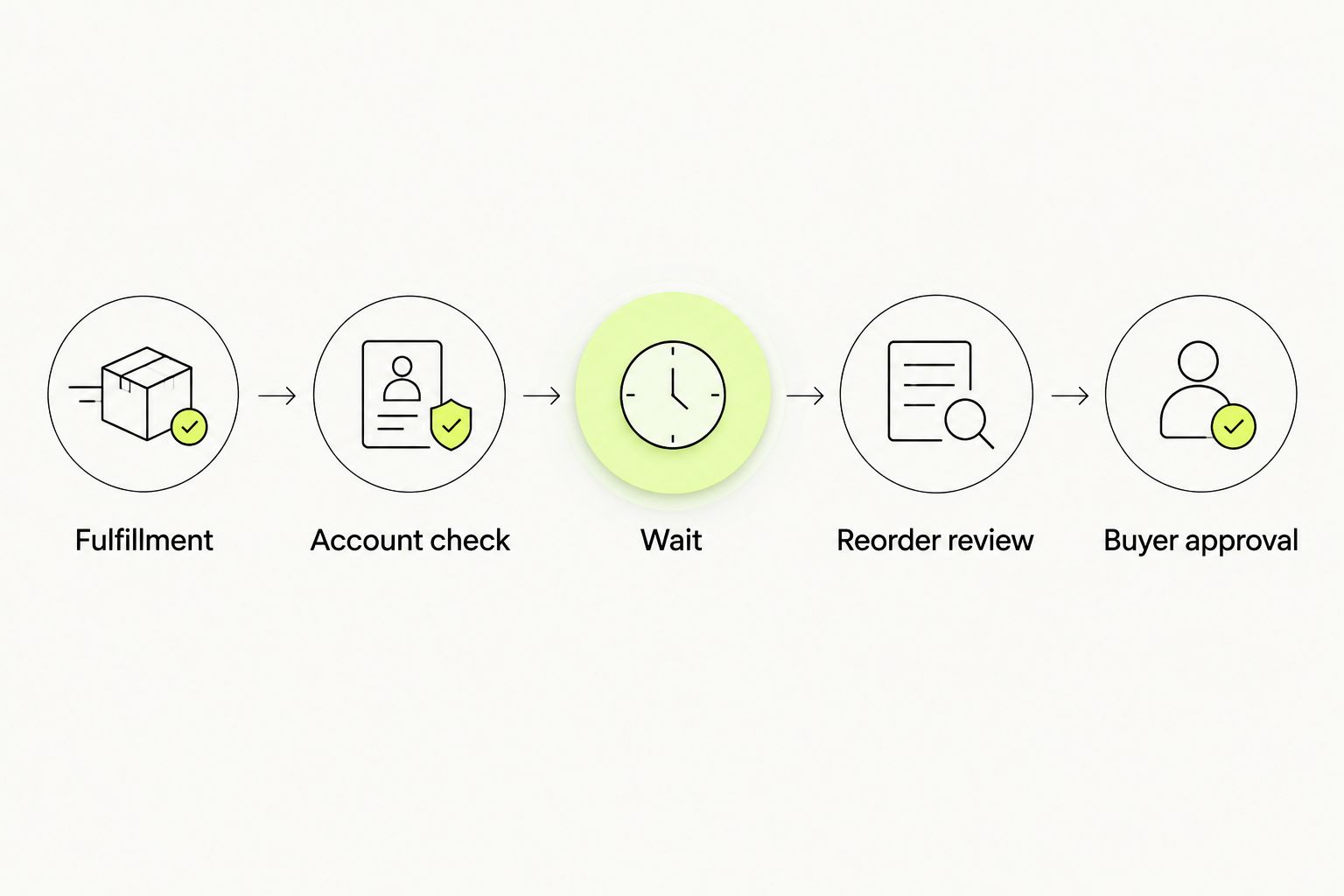
In Shopify Flow, use a narrow workflow first. An internal reminder is easier to validate than a buyer-facing message or an automatically generated transaction.
- Open Shopify Flow, select Create workflow, and choose Order fulfilled as the trigger. This ties the reminder to fulfillment rather than initial order submission.
- Add a Condition that identifies the approved B2B purchasing context. Inspect the trigger's available order data and use the company-related fields exposed in your editor; do not classify wholesale orders by email domain alone.
- Add Wait and set the interval your account team has agreed to use. The interval is a reminder setting, not a prediction of the buyer's stock level.
- After the wait, add conditions for the checks available in your workflow data. Route the reminder to manual review when current account eligibility or subsequent purchasing cannot be checked reliably in Flow.
- Add Send internal email. Use the variable picker to include the source order reference, buyer details, and company-location information available from the trigger.
- Select Turn on workflow only after testing the condition branches and confirming the internal recipient.
Expected result: A qualifying fulfillment produces an internal reorder-review reminder after the chosen wait. It does not create a purchase, charge the buyer, or promise delivery.
The reviewer checks for an existing repeat order, an account change, and the buyer's current request before preparing a draft. Keep the source order reference attached to the review so another staff member can recognize the same reminder.
Shopify Flow cannot infer a restaurant's remaining wine from the winery's fulfillment event. A reminder asks whether replenishment is needed. It does not establish the answer.
When an order is updated instead of fulfilled
Use a separate exception workflow when the event changes whether a reorder reminder still makes sense. Cancellation is a useful example: it should prompt an account check, not another sales message.
Create a second workflow with Order cancelled as the trigger and Send internal email as the action. Include the order reference and instruct the reviewer to check whether a reorder task is already open for that purchase.
Keep the fulfillment and cancellation workflows separate. Their purposes differ: one prompts replenishment review; the other flags a change that can invalidate that review.
For other order edits, confirm that your installed integration exposes the specific event before building around it. Do not label a workflow “order updated” when its trigger only detects fulfillment or cancellation.
Expected result: Staff receive an exception notice when a purchase is cancelled and can close or revise the related task. A cancellation does not silently leave an old reorder request moving toward release.
For the 2026 rollout, use buyer confirmation as the final safeguard even when the source order remains unchanged. The next purchase is a new decision.
Troubleshooting
The buyer signs in but sees the wrong purchasing context
Check the contact's company-location association and the selected location. Then verify the catalog assignment. Test with the buyer's own account, not an administrator session that has broader access.
The draft contains the wrong quantity or variant
Compare the copied draft with the current wholesale product mapping. Correct bottle-versus-case interpretation and variant selection before requesting buyer approval. An old order is a starting point, not a current purchase specification.
Retail orders produce wholesale reminders
Inspect the Flow condition that identifies B2B orders. Replace an email-domain or general customer-tag shortcut with the company purchasing context available in the trigger data. Test a retail transaction against the exclusion branch.
A reminder arrives after the buyer has reordered
Require the reviewer to check recent orders for that company location before contacting the buyer. A delayed workflow is not, by itself, a search across every later transaction. Add a supported lookup only when you can test its matching logic.
More than one reminder points to the same purchase
Check for overlapping workflows and repeated processing in connected systems. Use the source order reference as the review key, and close duplicate tasks before creating a draft. Never use the contact email as the only duplicate check; one buyer can place separate legitimate orders.
Customize your workflow
Once the pilot works, expand by account structure rather than adding more automation indiscriminately. Keep reminders location-specific for groups with separate receiving teams, and assign a clear reviewer for each account.
Tinto Amorio wholesale wine buyers include restaurants, bottle shops, and wine bars. Those businesses do not share one replenishment pattern. Ask each buyer how they want reorder review handled instead of imposing a single cadence.
For a larger rollout, use the guide to wine programs for multi-unit restaurant groups alongside the account setup. Separate the group's purchasing authority from each location's receiving details.
Keep the 2026 maintenance checklist short: buyer permissions, company locations, catalog assignments, current product records, and workflow recipients. Assign an owner to each. A functioning reminder sent to a former employee is still a broken process.
FAQ
What's the best setup for Shopify B2B wholesale wine ordering?
Use approved company locations, assigned catalogs, and buyer-confirmed reorders. Add fulfillment-triggered internal reminders only after account access and order review work correctly.
Does this guide describe Tinto Amorio's current wholesale portal?
No. This guide is a Shopify configuration blueprint, not a statement that Tinto Amorio operates the portal or automation described here.
Can Shopify Flow automatically reorder wine for a restaurant?
This workflow does not automatically place repeat purchases. Shopify Flow sends an internal reminder, and a reviewer checks the account and obtains buyer approval before proceeding.
Should wholesale wine buyers use self-service ordering or draft orders?
Self-service suits approved accounts with settled purchasing arrangements; draft orders suit purchases needing staff review. Both require the correct company location and a final check of the proposed transaction.
Can one restaurant group have several purchasing locations?
Shopify B2B supports company locations within a company record. Assign contacts and catalogs carefully so each purchase belongs to the intended premises.
Does a Shopify company account prove that a wine buyer is licensed?
No. A company record organizes purchasing information; alcohol licensing and the permitted sales route require a separate compliance process.
How do I stop duplicate wholesale reorder reminders?
Check the source order reference against open tasks and recent company-location orders before preparing a draft. Review overlapping workflows, and do not use buyer email alone as the duplicate key.
One last thing
A reorder should preserve the buyer's intent, not every detail of the old transaction. Keep the company relationship and useful order reference, then recheck the location, wines, variants, quantities, and approval.
The strongest test is simple: a staff member who did not handle the original sale should be able to explain why the new order is correct. If they need to search a private inbox, the workflow still depends on memory.