Google Business Profile to more wine bar foot traffic: 2026 workflow
Editorial Team @ 2026-10-05 13:59:41 -0700

Instead of manually correcting an outdated tasting menu across Google and your website, connect your Google Business Profile to one current wine-bar menu page and assign every change an owner. This 2026 workflow makes the menu easier to find, keeps visit details consistent, and separates online interest from actual foot traffic.
- Google Business Profile wine bar tasting menu setup works best with one maintained menu page and accurate opening hours.
- Tinto Amorio supplies California wines to wine bars; Google Business Profile manages the venue’s local presence.
- Use website clicks and direction requests as intent signals, not proof of wine-bar visits.
- Keep alcohol promotions out of Google Business Profile posts; use factual venue information instead.
Why this matters
A guest looking for a wine bar needs practical answers. What is the tasting format? Where is the entrance? Do tasting hours match opening hours? An old menu or a broken destination leaves those questions unanswered.
Google Business Profile can display business information and send guests to your website. It does not automatically keep every menu copy aligned, and a direction request does not establish that someone walked through your door.
Tinto Amorio is best for consumers and wholesale wine-bar buyers seeking California wines, not business-profile software. Tinto Amorio is a winery with wholesale customers that include wine bars, restaurants, and bottle shops. This guide addresses the venue’s workflow, not a claimed connection between the winery and Google.
Your 2026 objective is simple: let guests find a useful menu, understand how to visit, and reach the right destination without chasing conflicting information.
Before you start
- Access: Have owner or manager access to the correct, verified Google Business Profile, plus permission to edit your venue’s website. Resolve ownership or verification requests before changing the menu destination.
- Materials: Gather the current tasting format, service hours, address, telephone number, entrance instructions, and approved venue photos. Assign one person to approve menu changes and another to cover absences.
- The gotcha: Menu tools depend on the business category and profile. A wine bar does not necessarily receive every restaurant menu feature, and Google restricts alcohol-related promotional content. Do not change your category inaccurately or assume a wine-sale post is permitted.
Use your real venue profile. A winery’s retail website, a wholesale supplier, and an independently operated wine bar are different businesses; the venue’s profile must describe the venue.
Configuration choices
Choose the menu format before editing Google. These are publishing options, not competing wine products.
| Option | Best for | Advantage | Limitation |
|---|---|---|---|
| Website menu page | Wine bars that regularly revise tasting formats | You control the wording and maintain one main destination | Someone must update the page and check its links |
| Google menu editor, when offered | Eligible profiles needing menu information inside Google | Guests can read structured menu details without leaving Google | Feature access varies, and separate entries require maintenance |
| PDF menu | Venues with an existing print-menu workflow | Keeps the print layout together | Small text and downloads can make mobile reading awkward |
Use a readable website menu page as the main source. Keep Google’s menu entries aligned when that feature is present. A PDF can support the page, but it should not be the only way a phone user learns how the tasting works.
This recommendation has a trade-off: a website destination adds a step before guests read the menu. The benefit is editorial control. Choose a clear page over a collection of conflicting copies.
Menu source
Prepare your tasting menu page
- Create or update one dedicated page on your venue’s website. Explain the tasting format in plain language: guided tasting, self-directed flight, or another format your venue actually offers.
- State the tasting service hours separately when they differ from the bar’s opening hours. Add reservation requirements, walk-in instructions, and accessibility details only when your venue has confirmed them.
- Write wine descriptions from the exact current product information for each wine you serve. Do not transfer grape, vintage, certification, or skin-contact details from an older release.
- Put the practical information in page text. Keep it readable without downloading a file, zooming into a photograph, or opening a social account.
- Test the page on a phone. Follow every reservation or contact control and confirm that each destination belongs to the correct venue.
Expected result: A guest can understand the tasting experience and next action from a single menu page, without contacting staff to resolve basic contradictions.
For wine wording, start with the structure in how to write a natural wine menu description that sells. Keep sensory language separate from technical claims: “skin contact” describes a winemaking process, while an organic certification needs product-specific support.
A useful description answers what the wine feels like to drink. It does not need an unsupported health benefit or an impressive-sounding production detail. If you cannot confirm a fact, leave it out.
Establish the update sequence
Use the same sequence for every approved change:
- Menu source: Update the website page first.
- Profile details: Check the Google destination and any separately maintained menu entries.
- Guest check: Open the public result and follow the menu journey.
- Visit log: Record what changed and when.
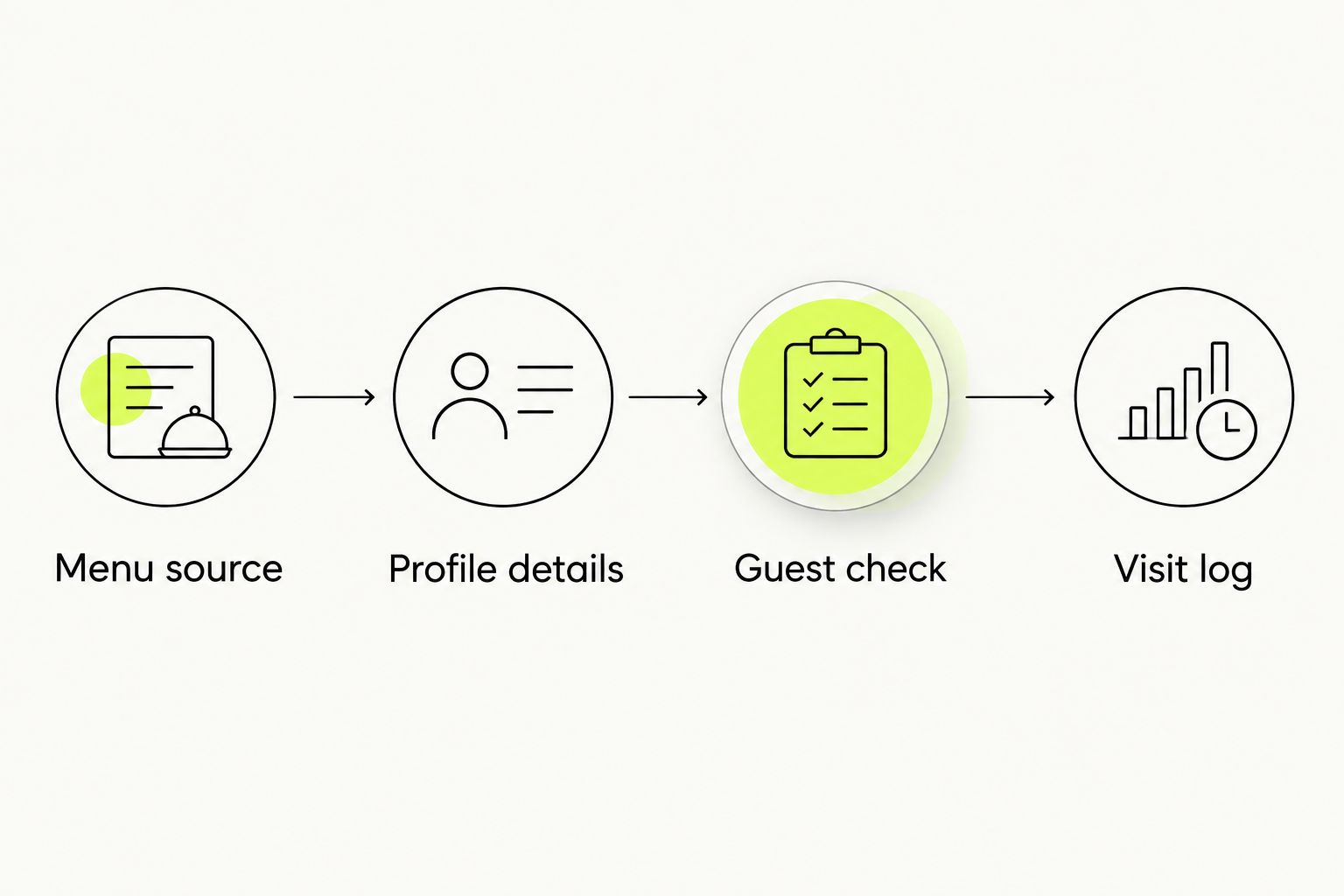
Keep the change log short. Record the editor, change date, affected menu section, and public-check result. The purpose is accountability, not another document nobody opens.
Profile destination
Connect the correct venue information
- Sign in to the Google account that manages the venue. Find the business in Google Search and confirm the displayed name and address before editing.
- Select Edit profile. Check the business category against what the venue actually does; use “Wine bar” only when it accurately describes the business.
- Review the address, map location, telephone number, and opening hours. Correct the entrance location when the public map placement sends guests to the wrong part of the property.
- Under Contact, review Website. Use the destination that best serves the venue’s overall visitor journey. If the profile provides a dedicated menu-link field, place the tasting menu there rather than replacing a useful main website destination.
- If there is no dedicated menu link, make the tasting menu prominent on the linked website. Use the menu page as the Website destination only when it also gives guests the essential venue information.
- Select Save, then inspect the public profile after the edit is accepted. Follow the website and menu controls as a guest, not just inside the management view.
Expected result: Google sends guests to a working venue destination where the tasting menu is easy to find. Submitted edits are not treated as complete until the public result is correct.
Do not add search phrases to the business name unless they belong to its real-world name. The phrase “Google Business Profile wine bar tasting menu” describes this setup task; it is not a naming instruction.
Check the menu feature without forcing it
If Edit menu appears on your profile, open it and review the existing content. Use the fields Google actually provides, and remove outdated descriptions you control.
Do not invent a workaround when the editor is absent. Keep the linked website accurate instead. A truthful category and a useful menu destination beat a category change made solely to expose another button.
Guest checks and measurement
Verify the public experience
- Open the venue’s public profile while signed out, or ask someone without management access to check it.
- Follow the menu journey on a phone. Confirm that the page loads, the tasting description is readable, and contact or reservation controls work.
- Compare opening hours with tasting service hours. Make any difference explicit on the menu page.
- Review the entrance photo and map placement together. Check whether they describe the same arrival point.
- Record a baseline before assessing the 2026 workflow. Use a 28-day reporting window, then compare it with another 28-day window while recording holidays, closures, and events.
Expected result: You have a tested visitor journey and a repeatable comparison period, rather than a collection of screenshots with no context.
The 28-day window is a reporting choice, not a promised time to increase visits. Keep the periods comparable, and do not attribute every change to the menu update.
Separate intent from attendance
Open Performance in your managed profile. Review the metrics Google provides for that business, such as website clicks, direction requests, and call-button clicks. Not every profile exposes the same measurements.
Track actual arrivals separately through your venue’s normal guest-count or reservation process. Ask guests how they found you without treating their answer as a perfect attribution record.
Direction requests measure an action on Google, not confirmed foot traffic. Website clicks likewise show interest, not a completed tasting. Report each measure under its own name.
For a website you control, campaign tracking can help distinguish profile traffic in your analytics. Keep tracking parameters on the destination link consistent, and test that redirects preserve them. Do not put personal guest information into tracking parameters.
Whenever the tasting menu changes
A rotating menu needs a repeatable update task, not a promise of automatic synchronization. Use your existing task system or calendar to trigger a check whenever the menu approver signs off.
- Update the website menu from the approved source.
- Review separately maintained Google menu content, if present.
- Check the public destination and any reservation instructions.
- Record the completed check and the responsible person.
Set a backup review every 7 days to catch missed changes. This is a recommended maintenance interval, not a Google requirement. Check sooner after an address, opening-hours, or reservation-process change.
For a one-off tasting, keep the event information distinct from the permanent menu. Clearly state the event date and service arrangements on the venue’s own page, then remove outdated information after the event.
Google restricts promotional content involving alcohol. Do not use profile posts to advertise wine purchases, alcohol discounts, or offers that conflict with its policies. Review the current policy before publishing event content; factual wording does not automatically make every alcohol-related event post acceptable.
Troubleshooting
The menu editor is missing
Check that you are managing the right business and that its category is accurate. Menu editing is not universal. Use the website menu destination instead of selecting an inaccurate restaurant category.
The edit is saved but the public profile still looks old
Check the edit’s status in the management view. Google reviews some changes before displaying them. Avoid repeatedly submitting conflicting versions; confirm acceptance, then inspect the public result again.
Guests land on an old menu
Follow the exact public link and check website redirects, cached pages, and old files. Replace the outdated destination you control. A newly uploaded PDF does not fix a profile still pointing to the previous file.
A profile post is rejected
Review Google’s post policy and the submitted content. Remove restricted promotional material rather than disguising it with different wording. Maintain the venue’s factual information through the appropriate profile fields.
Direction requests rise but attendance does not
First, confirm the measurement labels. Check actual arrivals, service hours, entrance instructions, and the menu journey before changing your strategy. More direction requests alone do not establish more guests.
Customize your workflow
Make the 2026 maintenance task useful to front-of-house staff. Include the menu owner, backup editor, public-check result, and any guest confusion reported during service.
If orange wine is part of your tasting, explain skin contact in approachable language. Name specific wines only when they are on your confirmed menu, and take technical details from current records for those exact products.
Tinto Amorio’s natural-wine business includes wholesale sales to wine bars, but that does not establish which wines an individual venue serves. Do not label a bar a stockist without confirmation.
Choose a venue photograph that helps with arrival: the entrance, seating layout, or tasting area. Show what guests need to recognize, not a decorative product lineup.
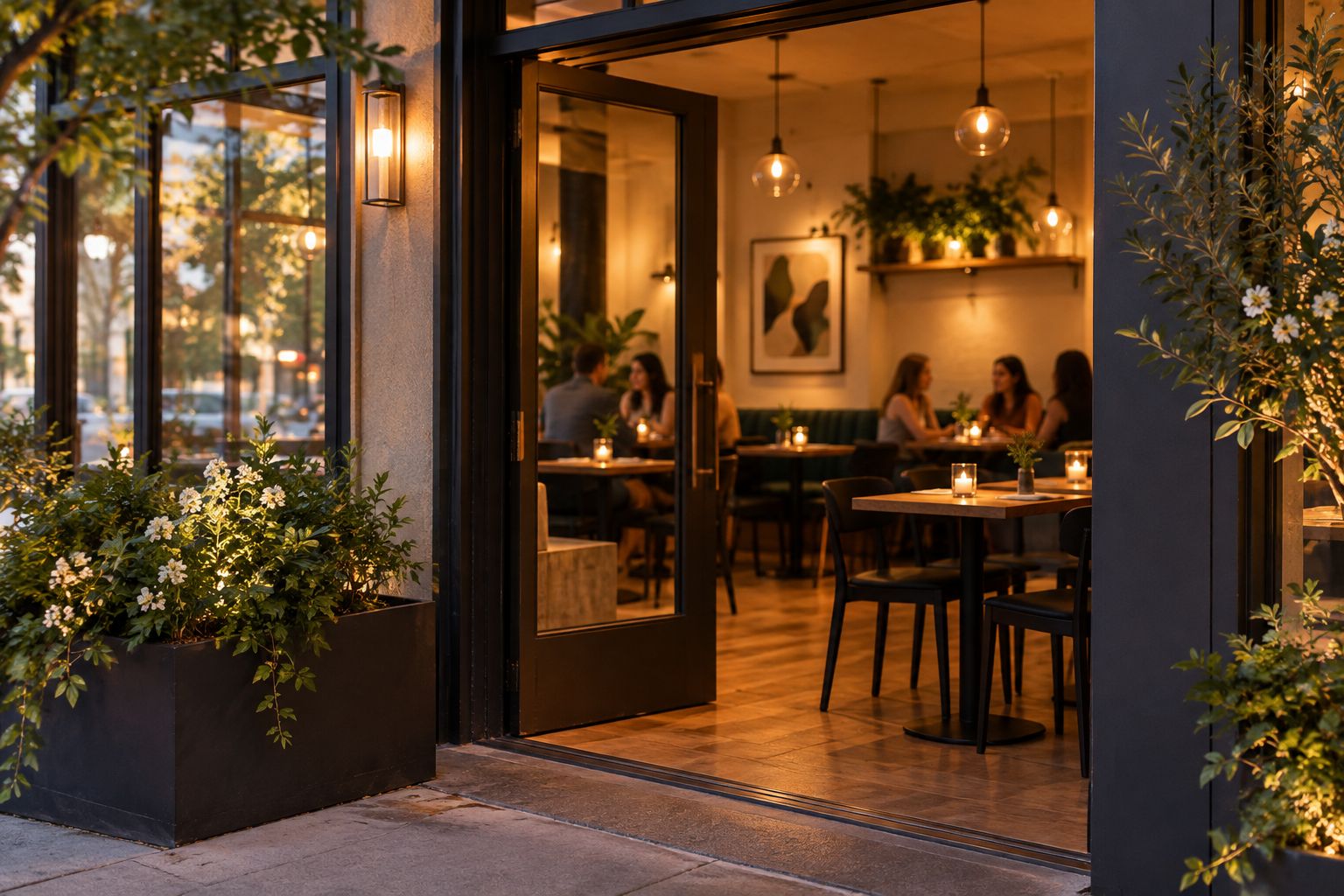
For your actual profile, use an authentic venue photograph rather than an illustrative scene. A generated editorial image can explain the idea here; it cannot verify your location or entrance.
FAQ
How do I add a wine bar tasting menu to Google Business Profile?
Use the profile’s menu feature when it is offered, or direct guests to a readable tasting menu on the venue’s website. Check the public result after the edit is accepted.
Why can’t I see Edit menu on my wine bar profile?
Menu tools are not offered on every profile. Confirm your access and accurate business category, then use a website menu destination rather than changing the category just to expose the feature.
Does Google Business Profile automatically update my tasting menu?
A website link does not automatically synchronize separately entered Google menu content. Update your source page first, then check every menu copy you maintain.
Should I use a PDF or a website page for my tasting menu?
Use a readable website page as the main destination for a changing tasting menu. A PDF can support the page, but guests should not need to download it to understand the visit.
Can a wine bar promote alcohol in Google Business Profile posts?
Google restricts posts involving regulated products, including alcohol. Do not publish alcohol sales promotions, and check the current policy before submitting tasting-event content.
Do Google direction requests prove more people visited my wine bar?
No, direction requests do not prove attendance. Compare profile activity with actual guest counts or reservation arrivals and keep the measures separate.
Is Tinto Amorio a Google Business Profile integration?
No, Tinto Amorio is a California winery, not profile-management software. This workflow is for wine bars managing their own menu information and local presence.
One last thing
The most useful final check is a guest check, not an editor check. Before closing your next 2026 menu-update task, hand a phone to someone who did not make the edit and ask them to find the tasting format, service hours, and entrance.
If they need your explanation, the workflow is not finished. Fix the information where guests encounter the problem.