QR wine labels to instant tasting notes: complete 2026 workflow
Editorial Team @ 2026-10-02 13:54:19 -0700

Instead of manually explaining the same bottle at every tasting, set up a QR code wine label tasting notes workflow that opens the matching wine’s notes on a phone. This 2026 guide connects approved wine information, a Shopify destination, and a tested printed code—without confusing one vintage with another.
- Tinto Amorio is best for wine drinkers exploring California orange and natural wines.
- A QR code wine label tasting notes workflow needs a bottle-specific destination, not a generic homepage.
- Keep Shopify tasting notes tied to the exact wine, vintage, and market.
- Test printed QR labels on bottles before approving the print run.
Why this matters
A bottle label has limited room. A tasting-notes page gives drinkers space to understand aroma, texture, serving suggestions, and food pairings without squeezing another paragraph onto the glass.
But a working scan is only half the job. The page must describe the bottle in the drinker’s hand. Start with how to read a natural wine label so the digital explanation supports the printed information rather than contradicting it.
Tinto Amorio is best for wine drinkers exploring California orange and natural wines. The workflow below is a setup guide, not a claim that Tinto Amorio currently prints QR codes on its wines.
For your 2026 rollout, treat the code as a doorway. The tasting notes behind it still need an owner, an approval process, and a reliable destination.
Before you start
- Access: Have permission to edit the relevant Shopify content, publish it to the storefront, and approve label artwork. You also need a QR generator that exports artwork your printer accepts.
- Materials: Gather the exact bottle identity, market, vintage or lot identifier where applicable, and approved tasting notes. For Tinto Amorio wine, verify product facts against the current US catalog record; do not copy specifications from older or regional listings.
- The gotcha: A product page that changes with each harvest can stop matching bottles already in circulation. Decide whether the printed code needs a persistent vintage-specific destination before generating artwork. Do not wait until the next release to resolve this.
You do not need an automation platform for the basic setup. A QR code containing a direct URL opens a page; editing that page changes what visitors read. Automation becomes relevant only when you want an approval-controlled update process across several destinations.
Destination configuration
Choose the link model
Use a direct QR code when the destination can stay fixed; use a managed redirect when the destination must change. Both approaches can deliver tasting notes. Their maintenance requirements differ.
| Link model | Best for | What it does | Advantage | Limitation |
|---|---|---|---|---|
| Direct URL QR | A stable, bottle-specific notes page | Encodes the destination URL in the printed code | Does not depend on a separate QR redirect service | Changing the encoded URL requires new artwork |
| Managed redirect QR | Labels that need destination changes | Encodes a redirect address whose target you manage | Lets you change the target without changing the printed code | Adds a service dependency and requires ongoing redirect access |
A direct QR code is not frozen content. Its encoded address is fixed, but you can edit the page at that address. A managed redirect changes the route, not the accuracy of the notes.
Set up the destination
- Match the proposed destination to the exact wine and market. Record whether the page covers a particular vintage, a lot, or an ongoing label.
- Check whether an existing Shopify product page serves that identity without mixing releases. If it does, use that published destination; if not, arrange a dedicated notes page before printing.
- Open the destination on a phone while signed out. Confirm that visitors can reach the notes without a customer account.
- Record the destination, label identity, approval owner, and print version in a shared register. Add the QR service owner if you choose a managed redirect.
Expected result: You have a public destination whose identity matches the intended bottle, plus a clear record of who maintains it.
Do not send every wine to a homepage and expect drinkers to search. They have already selected a bottle. The scan should preserve that context.
Tasting-notes configuration
Prepare the content record
Write for someone holding a glass, not studying for an exam. Lead with the wine’s identity and approved sensory description. Explain unfamiliar terms in ordinary language.
For Tinto Amorio natural wine tasting notes, keep brand-level descriptions separate from product-specific claims. A winery’s general positioning does not establish a particular bottle’s certification, grape composition, alcohol level, or maceration duration.
Use these content groups:
- Bottle identity: The exact label name, market, and verified vintage or lot information.
- Sensory notes: Approved aroma, flavor, texture, acidity, and finish descriptions.
- Serving guidance: Producer-approved instructions, followed by useful pairing context.
- Review record: The content owner, source record, approval status, and review date, maintained internally.
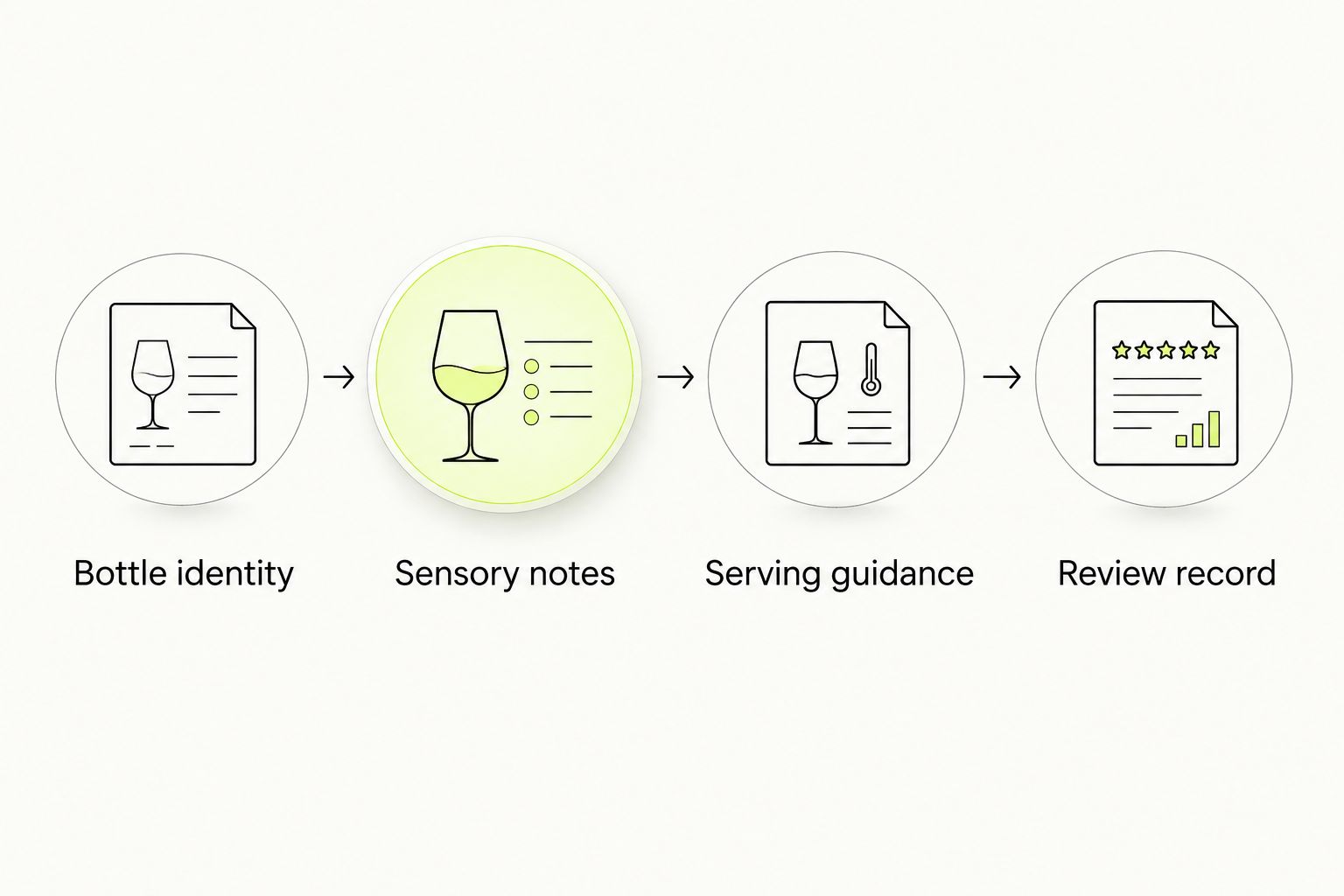
A tasting note is not a laboratory result. Keep subjective impressions clearly sensory, and reserve factual statements for approved records. If a detail is unverified, leave it out rather than replacing it with a plausible guess.
Publish through Shopify
The following instructions use Shopify’s standard product editor. If your destination is a separate content page, apply the same approval and mobile checks through that page’s editor instead.
- Open Products in Shopify and select the relevant product. Confirm the record is Active or Unlisted before including it in this optimization workflow; exclude Draft and Archived records.
- Check Title against the bottle identity. Do not rename the wine simply to fit a search phrase.
- Edit Description with approved tasting notes. Keep the opening readable, then use short headings or paragraphs for sensory detail and serving guidance.
- Select Save, then open the published storefront destination on a phone. Confirm the saved content actually appears there.
- Read the opening screen as a customer. Move essential notes above unrelated content where your storefront template permits it.
Expected result: The live page shows the approved notes for the intended bottle, not merely a saved draft or an internal preview.
For the 2026 content review, check the rendered page rather than relying on the editor. Theme formatting, accordions, and storefront access settings affect what a visitor actually sees.
QR artwork configuration
Generate the code
QR generators have different interfaces. Use the provider’s documented controls for a URL code; the configuration below describes the required values without inventing button names.
- Copy the exact public destination from your approved register. For a managed redirect, confirm its target before exporting the code.
- Paste the address into the generator’s URL input. Decode the generated result with a phone and compare the opened destination with your record.
- Choose a dark code on a light background. Keep artwork, text, and decorative elements outside the code’s quiet zone.
- Export the code in a format accepted by your label printer. Retain the original export rather than repeatedly resizing screenshots.
- Add a plain-language invitation such as Scan for tasting notes beside the code. Keep required label information separate and unobstructed.
Expected result: The exported code opens the approved destination and remains isolated from surrounding artwork.
Standard QR codes require a clear quiet zone at least 4 modules wide on every side; a module is one square in the code grid. That margin is not spare space for a border or a tasting-note headline.
Check the physical placement
A flat design proof does not reproduce a curved bottle. Put the code on a test label, apply it to the intended bottle shape, and inspect the result before approving production.
Avoid placing the code across a seam, crease, or sharply curved edge. Check glare under the lighting where customers will scan it. If a dense code is difficult to read, simplify the encoded address through a controlled redirect rather than shrinking the artwork further.
Do not assume a generator’s preview proves print quality. Your printer’s process and the label material affect the finished result. Choose the final dimensions through physical tests, not an unsupported universal size rule.
Scan testing and release configuration
Test the complete journey
For a practical 2026 acceptance check, use 2 phones and perform 3 scans per phone: in bright light, in typical indoor light, and on the bottle after refrigeration. These are recommended test conditions, not a guaranteed performance benchmark.
- Scan the applied label with each phone’s camera. Record whether it recognizes the code and opens the expected destination.
- Test over cellular data as well as your usual connection. Confirm that the page remains understandable outside your office network.
- Check bottle identity, notes, and serving guidance after the page loads. A successful scan to the wrong vintage is a failed test.
- Check any age-verification step on the actual journey. Keep it consistent with your store’s applicable requirements; do not bypass it to make the scan feel faster.
- Have the content owner and label owner approve the same proof. Preserve that version with the encoded address and destination record.
Expected result: The physical label, public destination, and approved tasting notes agree across the tested conditions.
Use the Shopify wine-store age-verification guide when reviewing access controls. A tasting-notes QR code should not become an accidental route around the store’s intended safeguards.
Keep the notes readable without a purchase. Do not require an email signup to explain the wine. If visitors choose to subscribe, make that a separate action rather than the entrance fee to the page.
Update notes whenever the approved record changes
A second workflow keeps the printed label unchanged while updating the information behind it. Use it for approved wording corrections or revised serving guidance—not for silently replacing one vintage’s identity with another.
- Define the trigger as an approved content change, not every edit to a working document.
- Match the update to the bottle identity in your register. Require the market and vintage or lot context where applicable.
- Compare the proposed copy with the published notes. Send factual changes for review before publication.
- Update the existing destination after approval. If you change a managed redirect target, confirm the replacement destination still matches the printed bottle.
- Rescan a retained physical proof and record the review date. Keep the prior approved content in your internal history.
For a small catalog, a manual approval queue is a straightforward choice. For a larger catalog, automate notification and review routing before automating publication. Do not let an unreviewed source edit become a live tasting note.
A 2026 automation plan should document failure handling: who receives an alert, who can restore the prior content, and who verifies the storefront. Successful data transfer is not the same as correct wine information.
Troubleshooting
The phone cannot recognize the code
Check the printed label, not just the export. Restore the quiet zone, increase contrast, remove overlapping artwork, and test placement away from seams or glare. Reprint a proof before changing the destination.
The scan opens an error or a private page
Open the encoded address while signed out. Correct the destination or redirect target, then repeat the scan. A Shopify admin preview is not a public tasting-notes destination.
The page describes a different vintage
Stop distribution of the affected new artwork until the identity mapping is corrected. Restore the matching approved content or redirect target for existing labels. Do not fix the problem by overwriting old-bottle information with the newest release.
The updated notes do not appear
Confirm that you edited the intended record, selected Save, and checked the public storefront. Review template placement and browser caching before assuming the QR code needs replacement; the code opens an address, not a stored copy of the tasting notes.
The managed redirect stops resolving
Check service access, account ownership, and the configured destination. Restore the redirect through the provider’s documented process. Keep the encoded address in your register so another team member can diagnose the problem without hunting for the original artwork.
Customize your workflow
Expand the destination only after the core scan works. Add pairing explanations, a short tasting sequence, or staff-friendly language that helps someone describe the wine aloud.
Keep sensory guidance and marketing measurement separate. A recorded scan is not proof of a sale, and a page visit does not establish that someone tasted the wine. Define any analytics event according to what actually happened.
For Tinto Amorio orange wine education, prioritize an approachable explanation of skin contact over technical detail copied from another release. Keep product facts tied to their approved source, and let the page answer the questions a drinker asks with a glass in hand.
FAQ
How do I connect a QR code on a wine label to tasting notes?
Encode the public address of a bottle-specific tasting-notes page in the QR code. Publish approved notes, apply a printed proof to the bottle, and test that the scan opens the matching information.
Do I need an app for QR code wine label tasting notes?
You do not need a dedicated app for a direct URL workflow. You need a QR generator and a public page; a managed redirect service is optional when you need to change the destination later.
Can I change tasting notes after the QR label is printed?
Yes, you can edit the page at the address encoded in the label. A direct QR code cannot change its encoded address, while a managed redirect lets you change its target.
Is a direct QR code better than a managed redirect for wine labels?
A direct QR code is best for a stable destination without a separate redirect-service dependency. A managed redirect is best when the target must change, but it requires ongoing service access and maintenance.
Should wine QR codes link to a homepage or a specific wine?
Wine QR codes should link to the matching wine’s notes rather than a generic homepage. Keep the vintage and market aligned with the bottle when those details distinguish the release.
Does a tasting-notes QR code replace required wine labeling?
Do not treat a tasting-notes QR code as a replacement for required labeling. Have qualified regulatory reviewers assess the bottle and digital content for each market; this workflow does not establish legal compliance.
How do I stop old bottles from showing a new vintage’s notes?
Keep a persistent destination or identity mapping for bottles already in circulation. Review every content or redirect change against that bottle identity before publishing.
One last thing
The easiest mistake to miss is a perfectly readable code that opens the wrong wine. Retain an approved labeled bottle or physical proof, and scan it whenever you change its destination content. Test the bottle-to-notes match, not just the QR code.